 Duoboard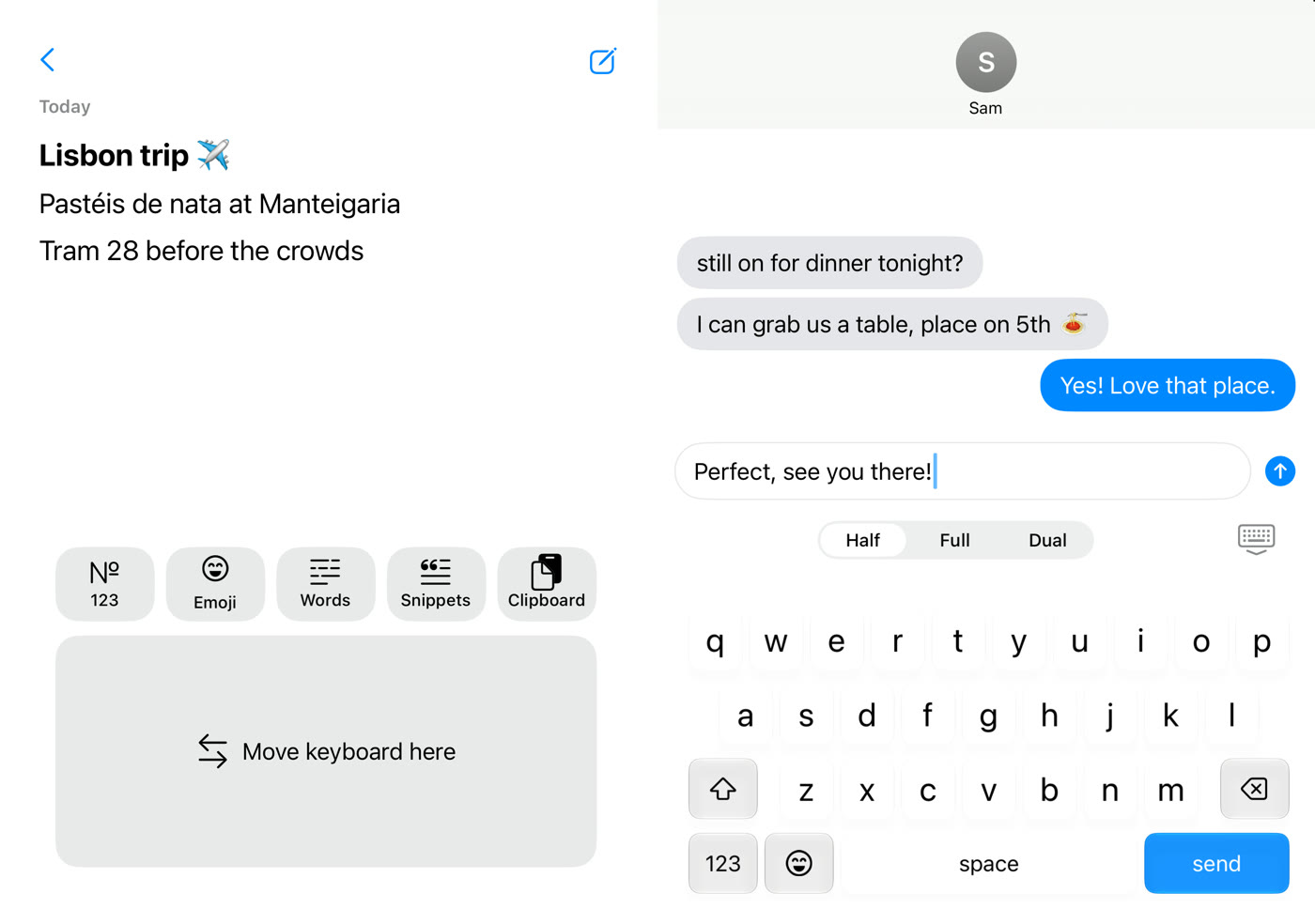
Half
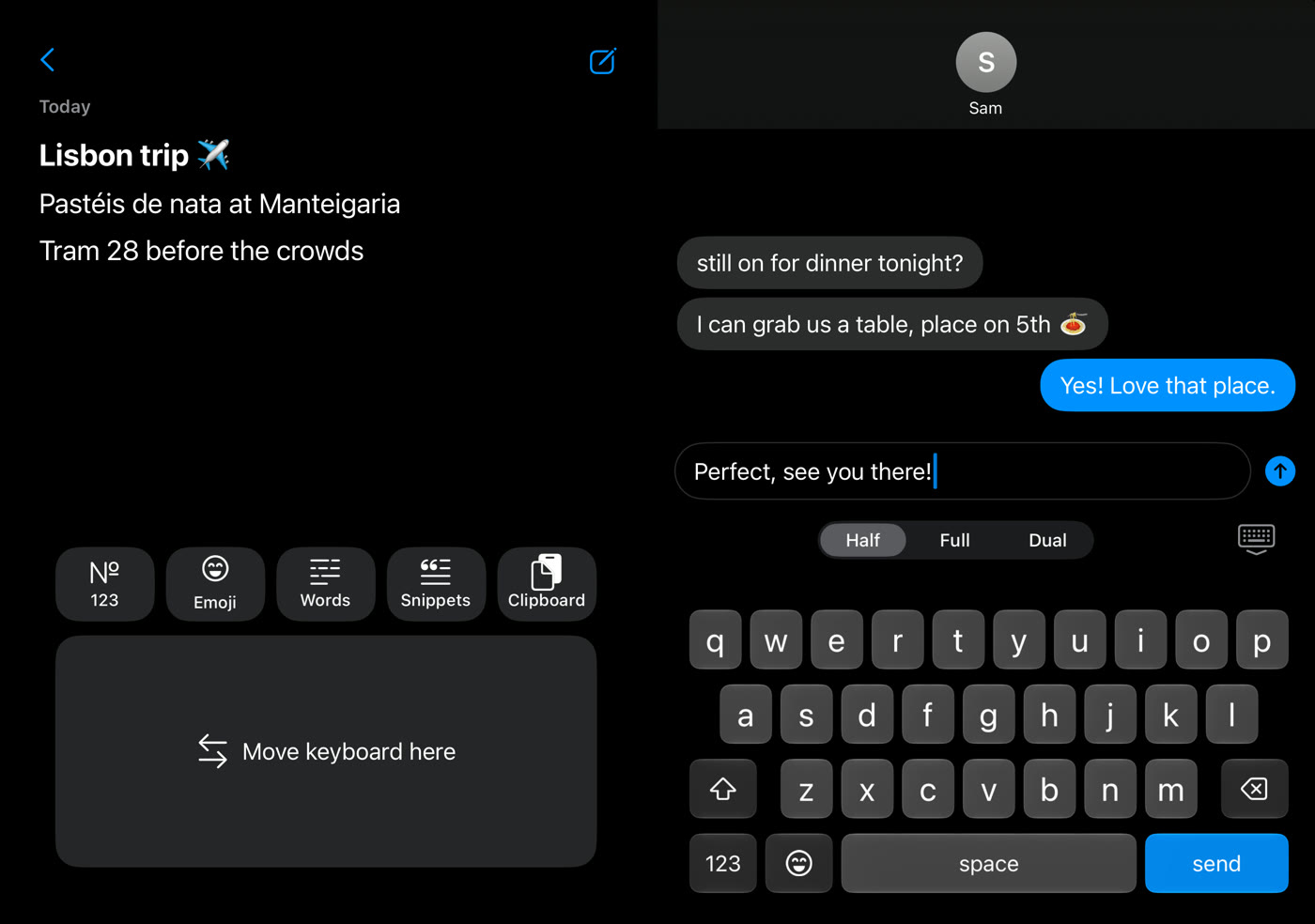
One keyboard on one half of the display, under one thumb. The other half keeps its app in full view.
Tap Move keyboard here on the other half to switch sides, or put that half to work below.
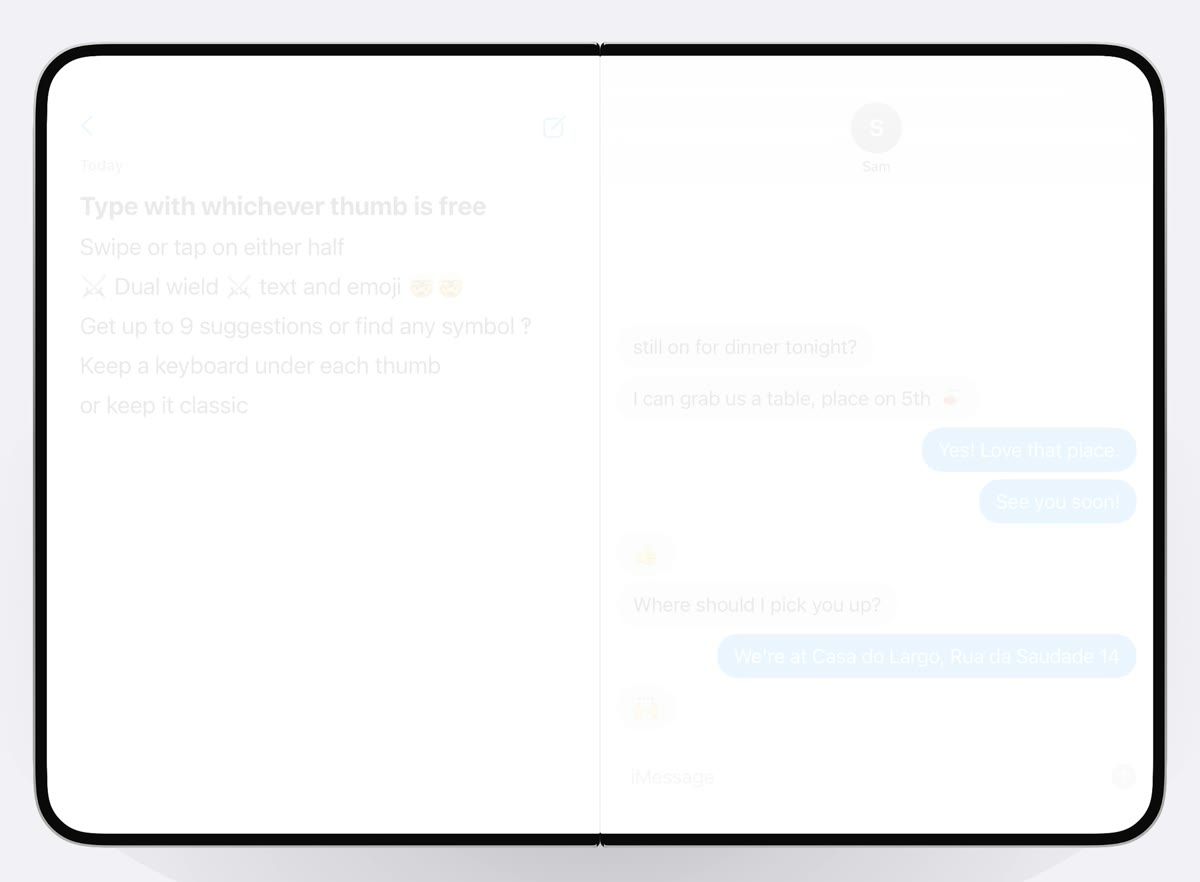
Duoboard is a keyboard for the iPhone Duo. Open it like a book with two apps side by side, and type on the left half, the right half, or both.
Coming soon to the App Store
Two apps open, one hand on the phone. Duoboard puts the keys under the thumb that’s free.
Three modes
Switch from the keyboard’s top row, the same way the film does. On the outer screen or any other iPhone, Duoboard is a normal single keyboard.
One keyboard on one half of the display, under one thumb. The other half keeps its app in full view.
Tap Move keyboard here on the other half to switch sides, or put that half to work below.
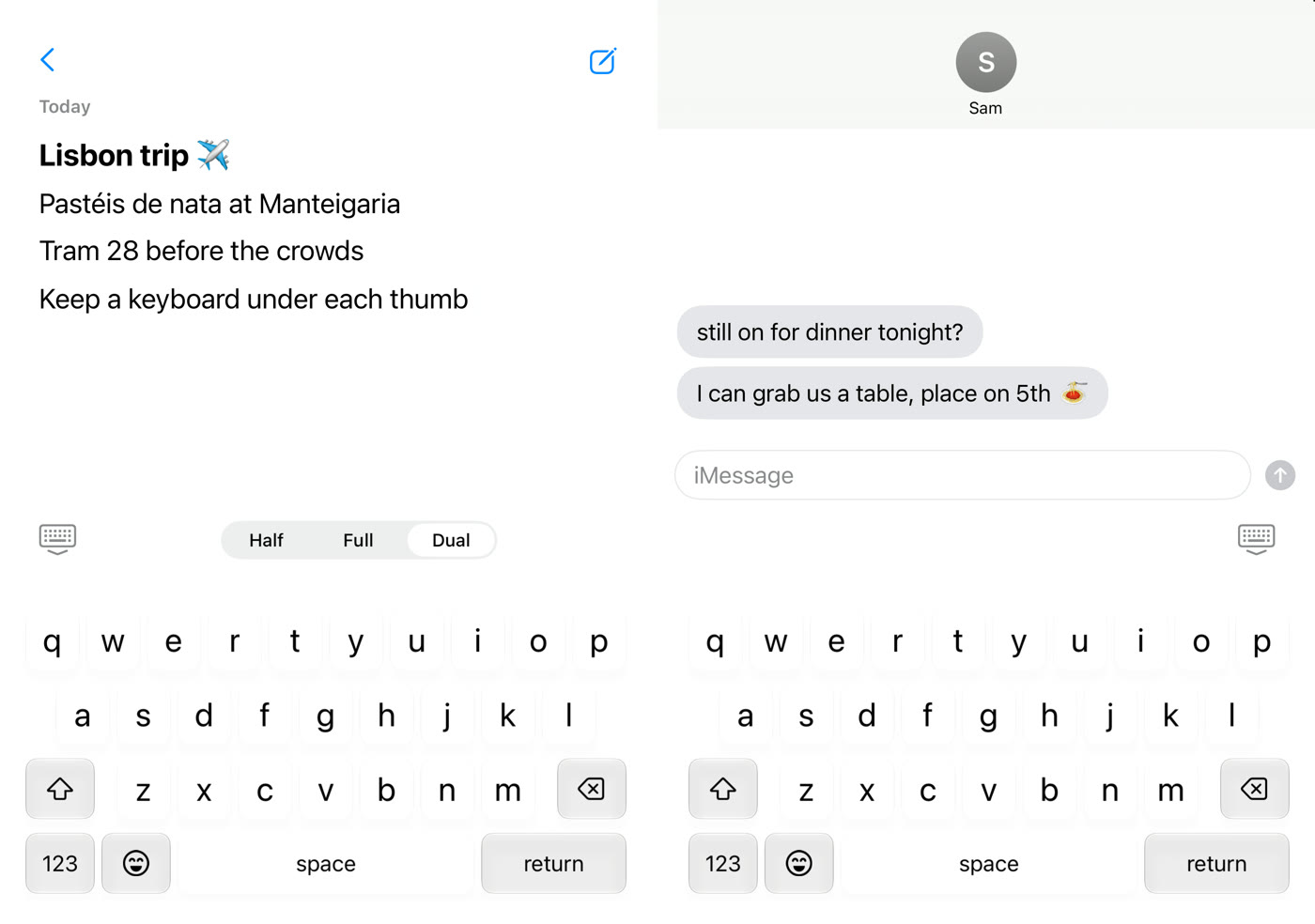
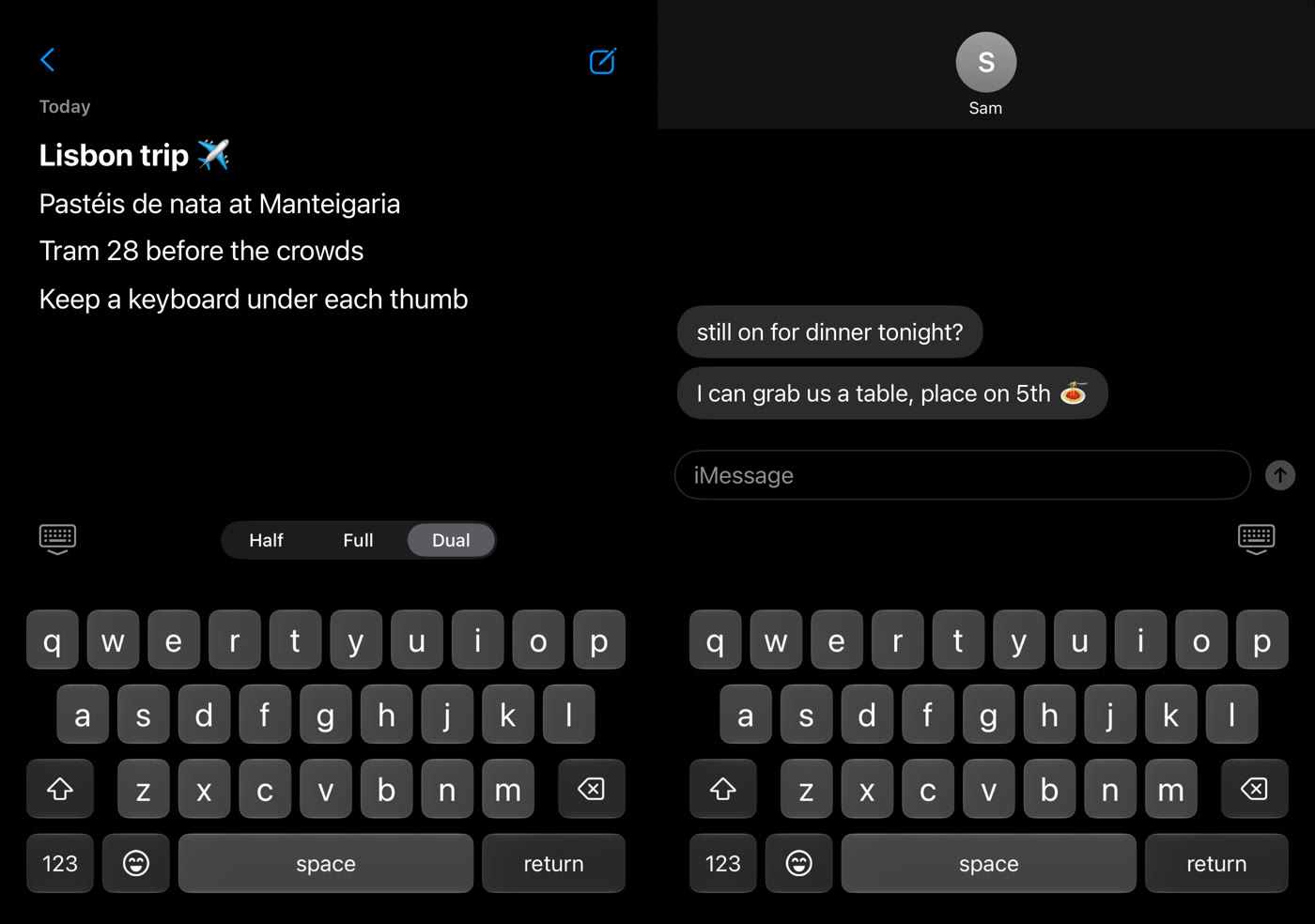
A full keyboard under each thumb. Both type into the app you’re in, so you can alternate thumbs like on a regular phone.
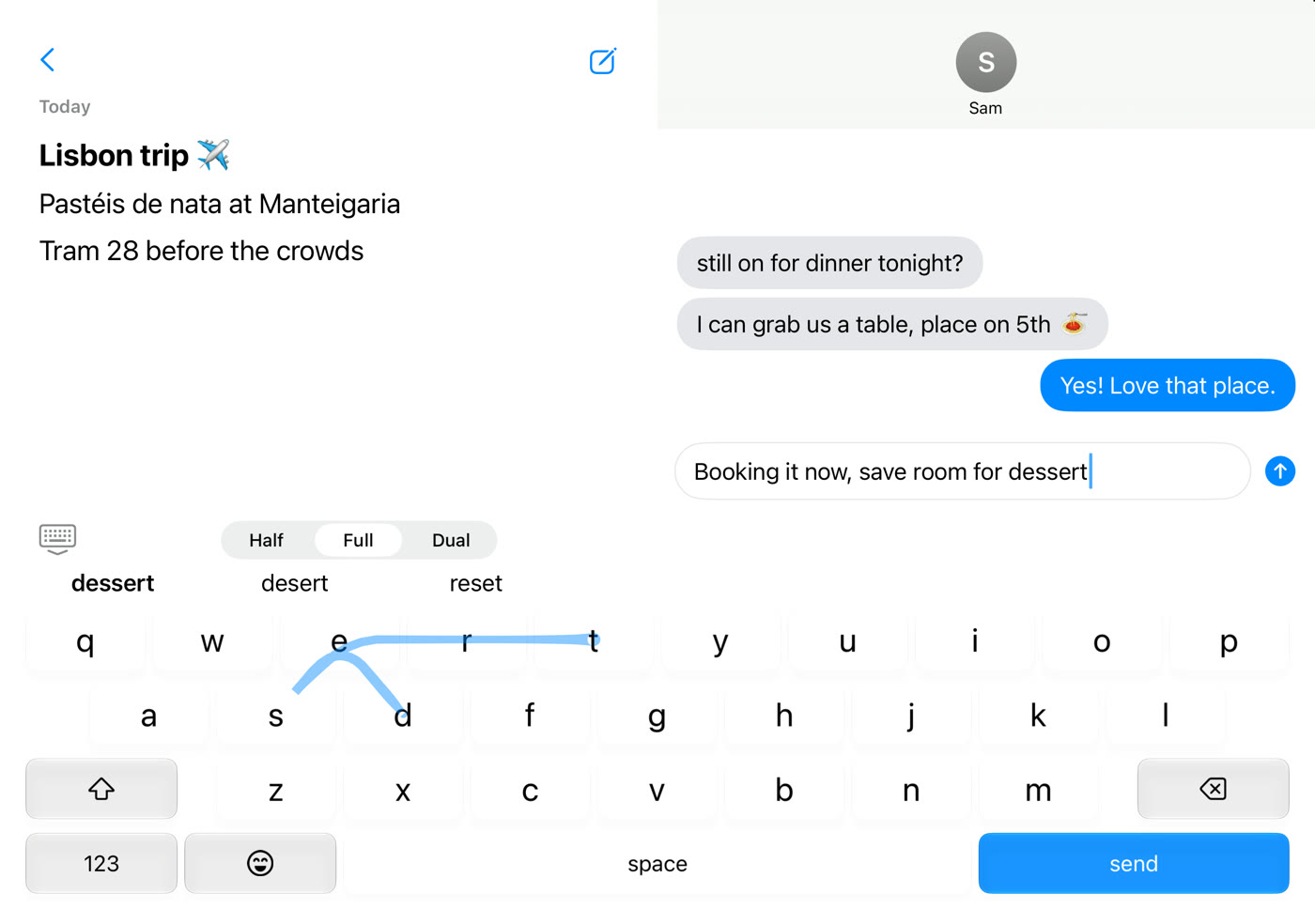
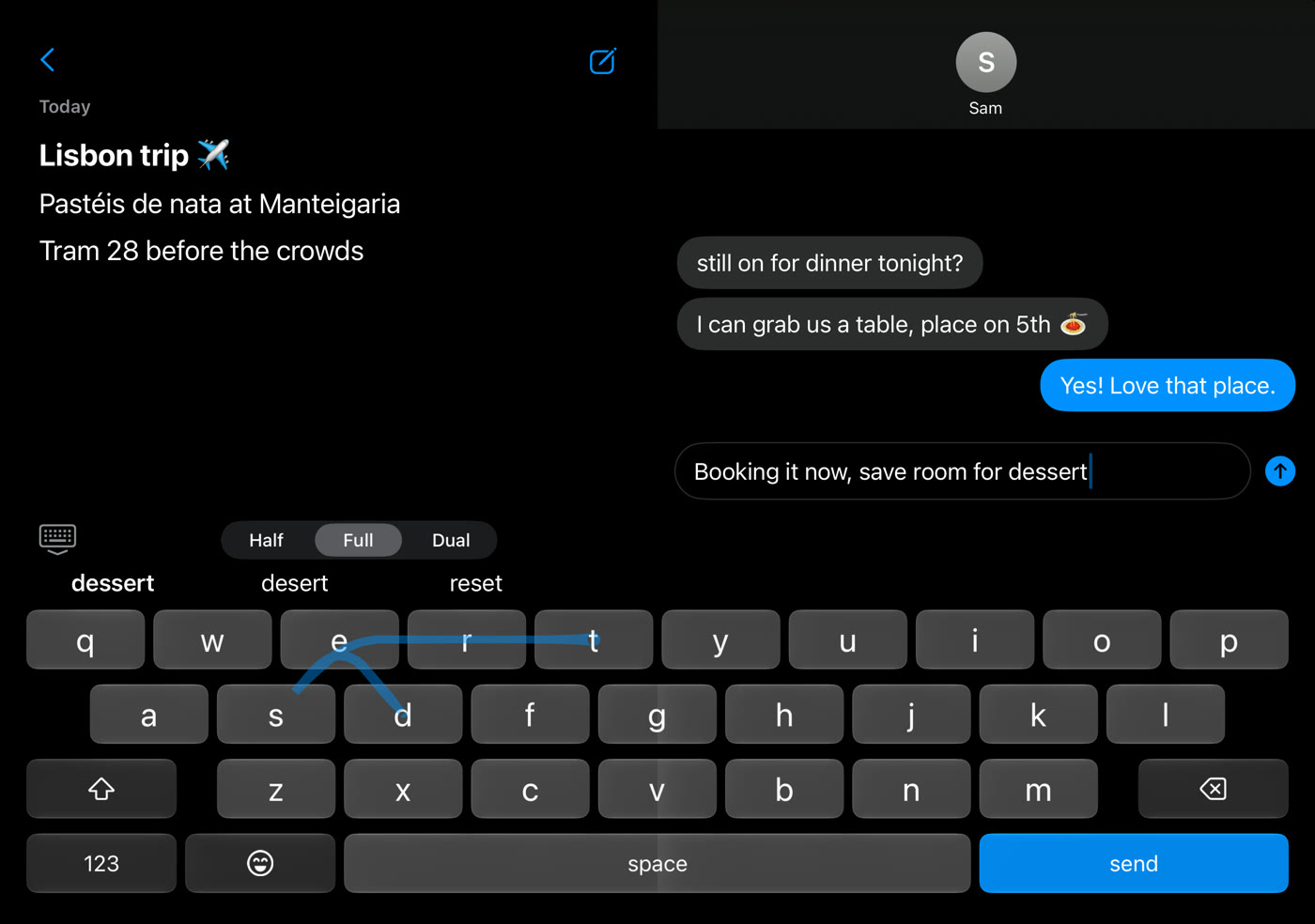
One classic keyboard across the whole open display, the layout you already know.
The other screen
In Half, the screen beside the keys isn’t left empty. One tap and it holds emoji, numbers and symbols, more suggestions, your snippets or your clipboard, right next to the letters.
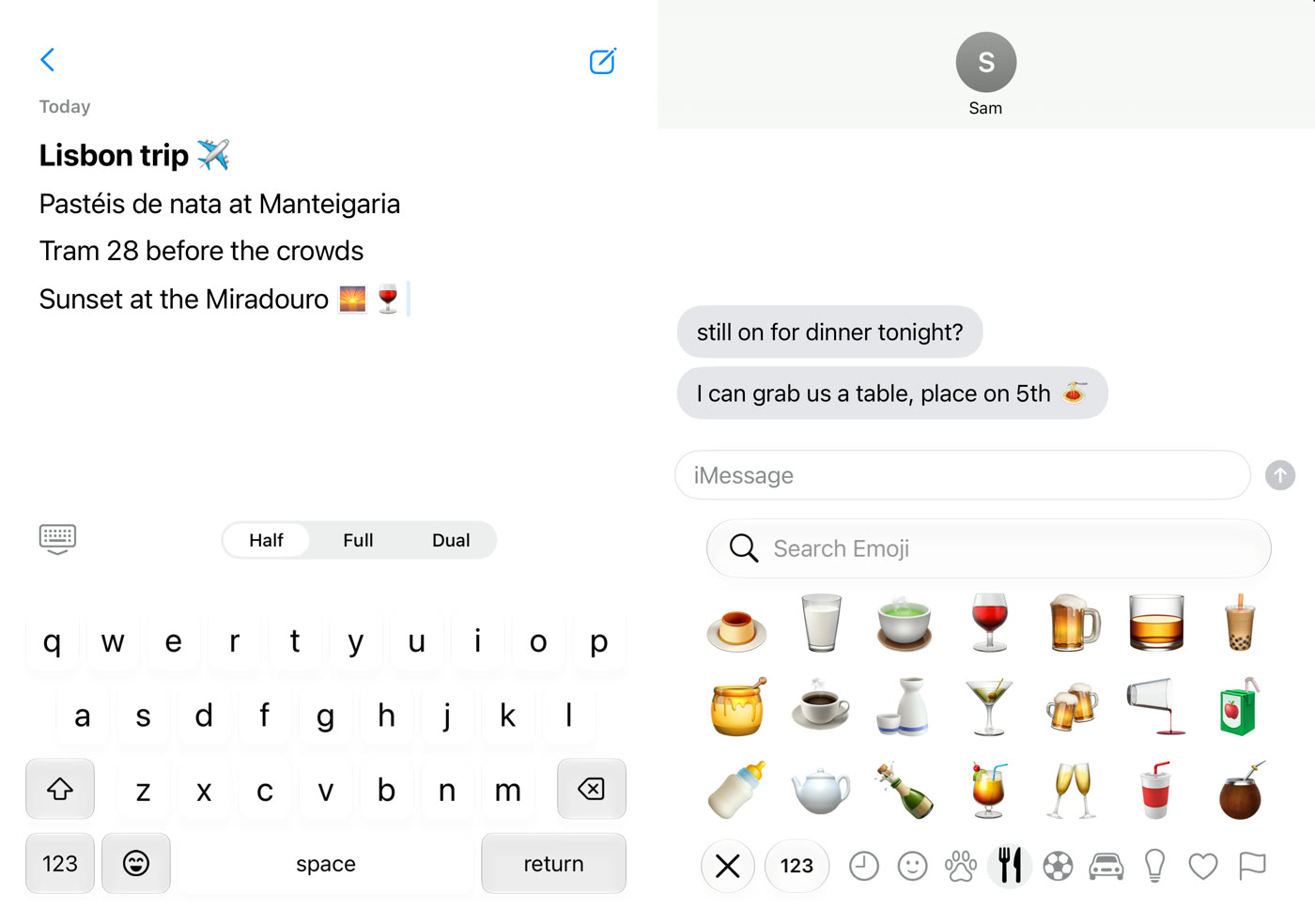
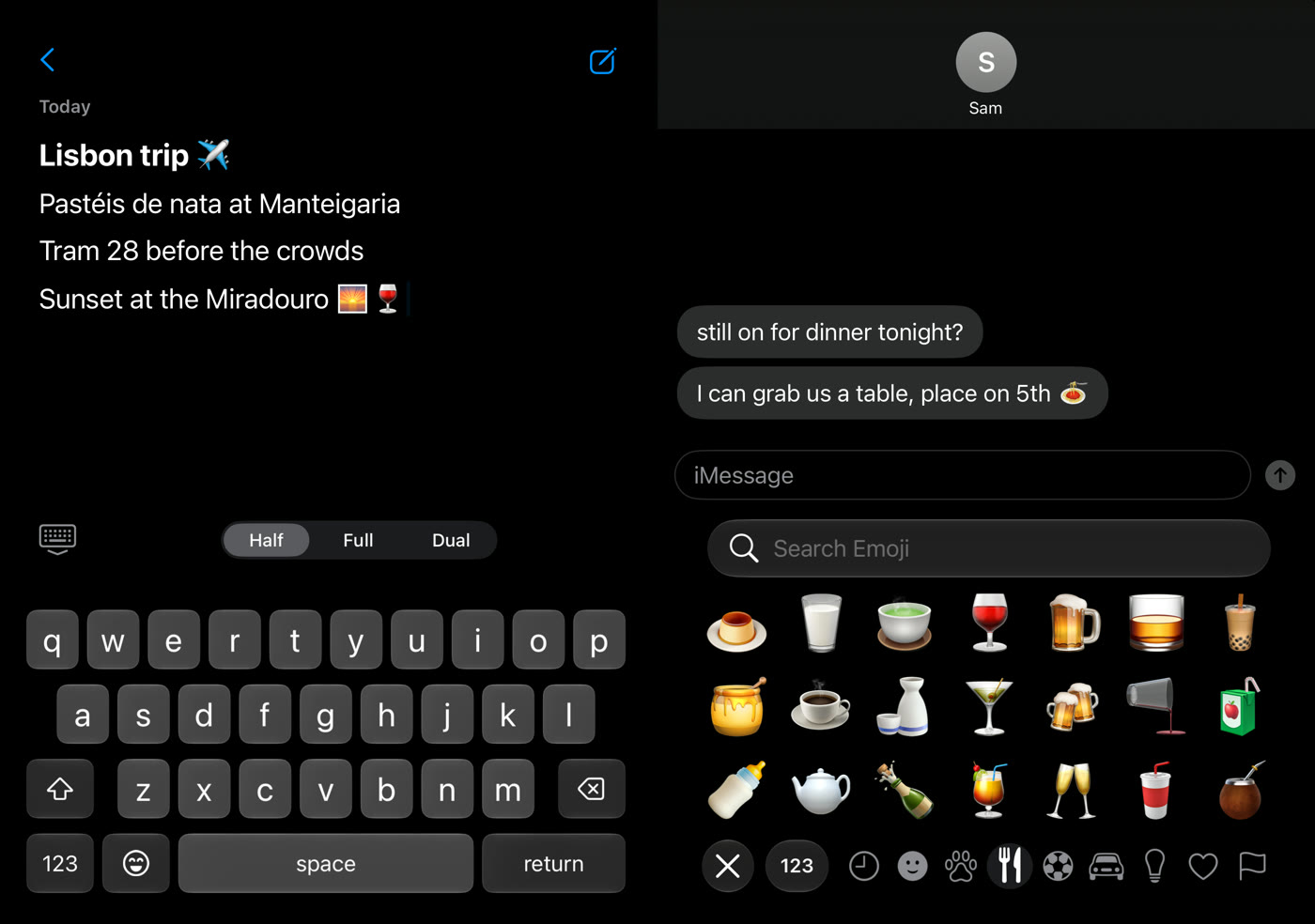
Keys on one screen, emoji on the other. Every emoji, with search and skin tones, and no switching.
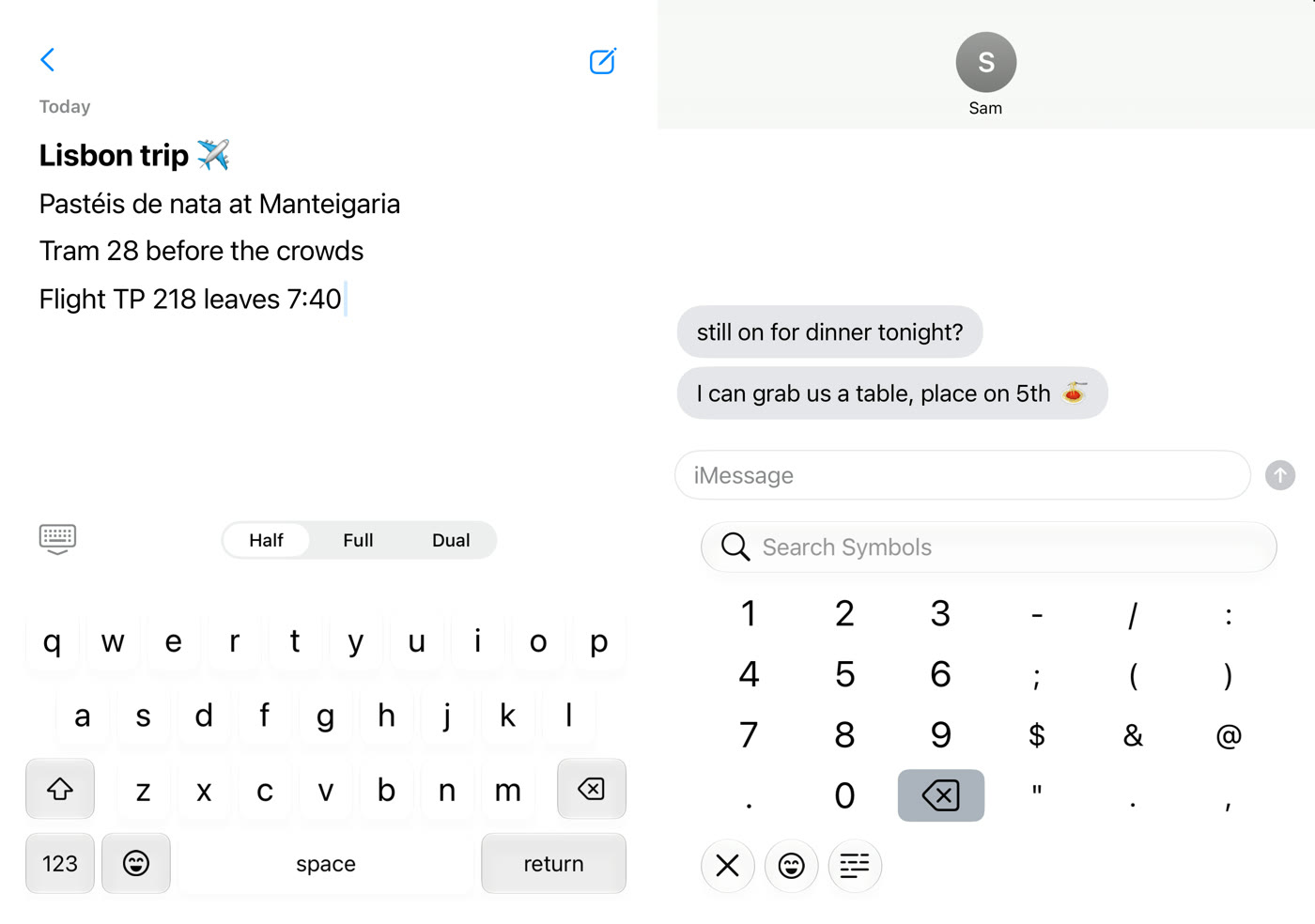
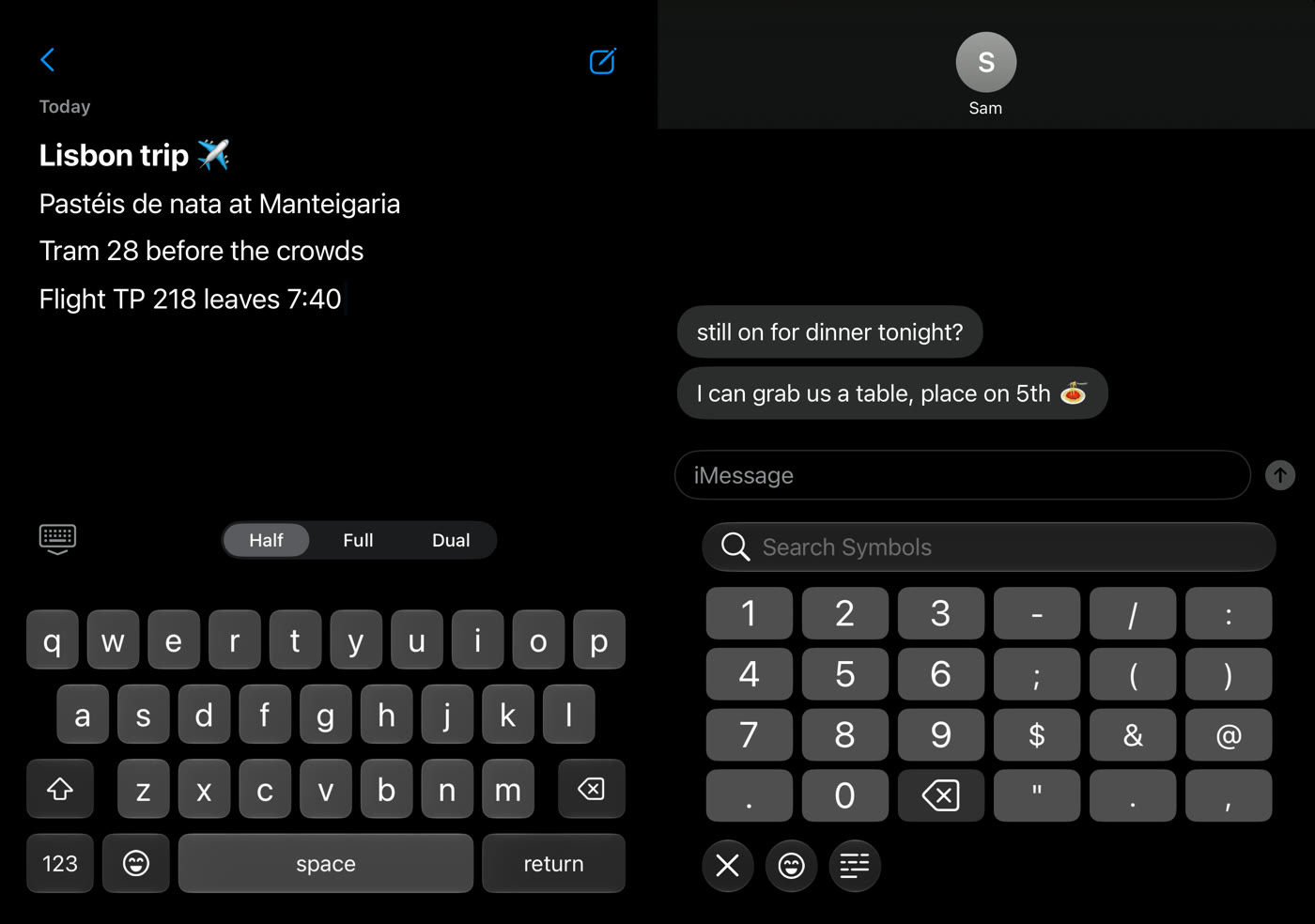
Right beside the letters, with every symbol from the system keyboard. Plus search for any symbol you can think of, like ‽.
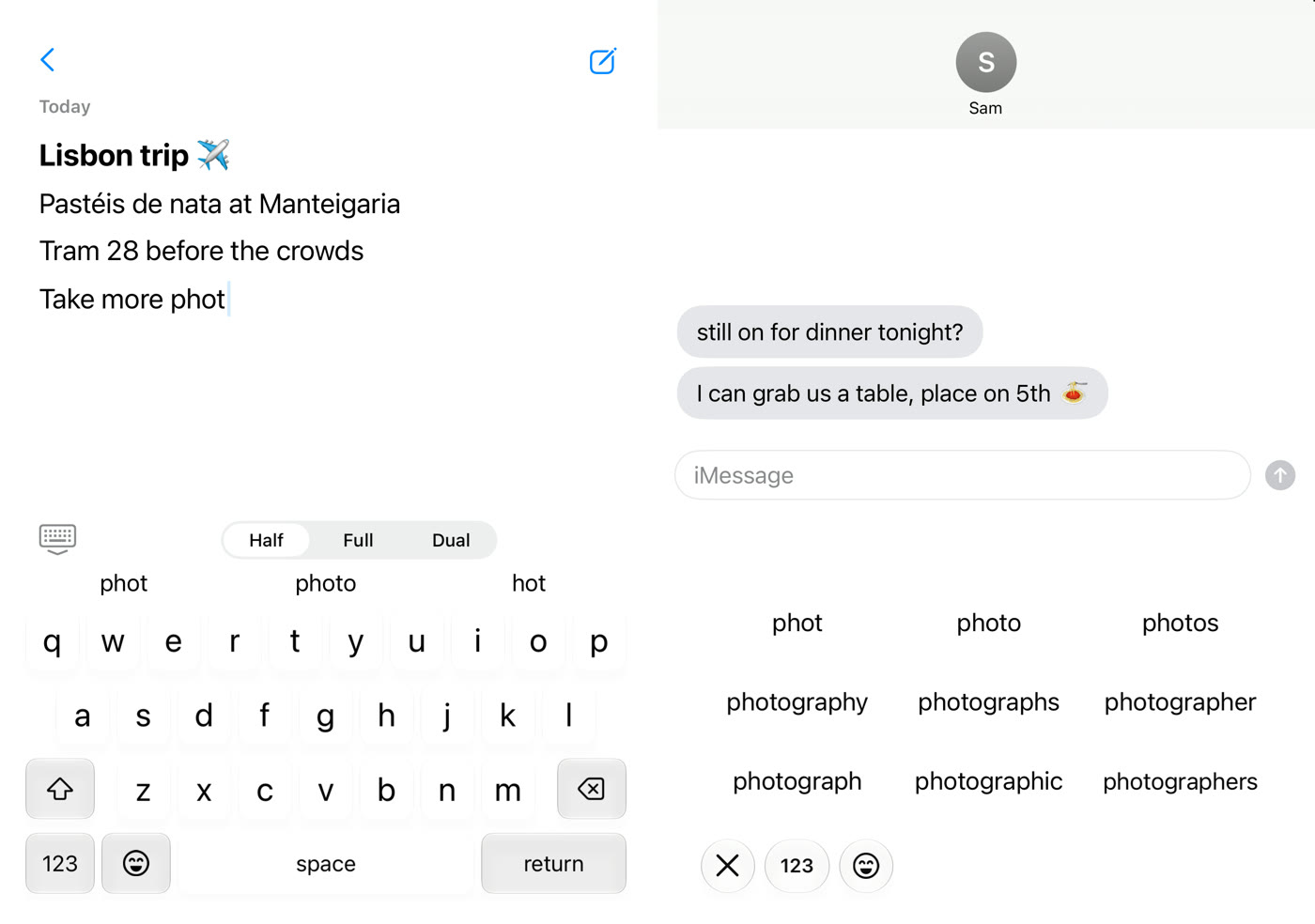
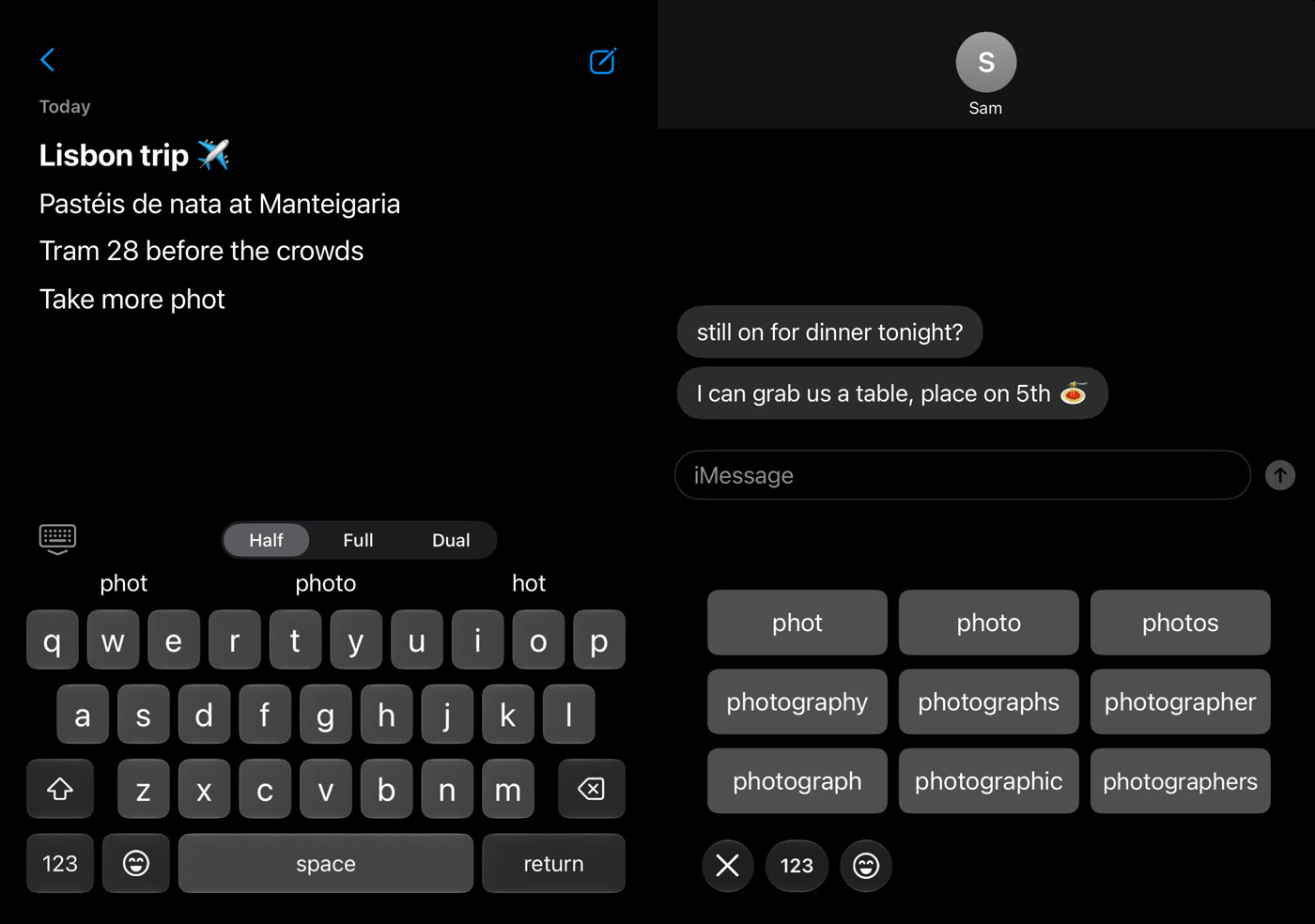
Get up to nine text suggestions as you type: the word you’re on, its near misses and how it could end.
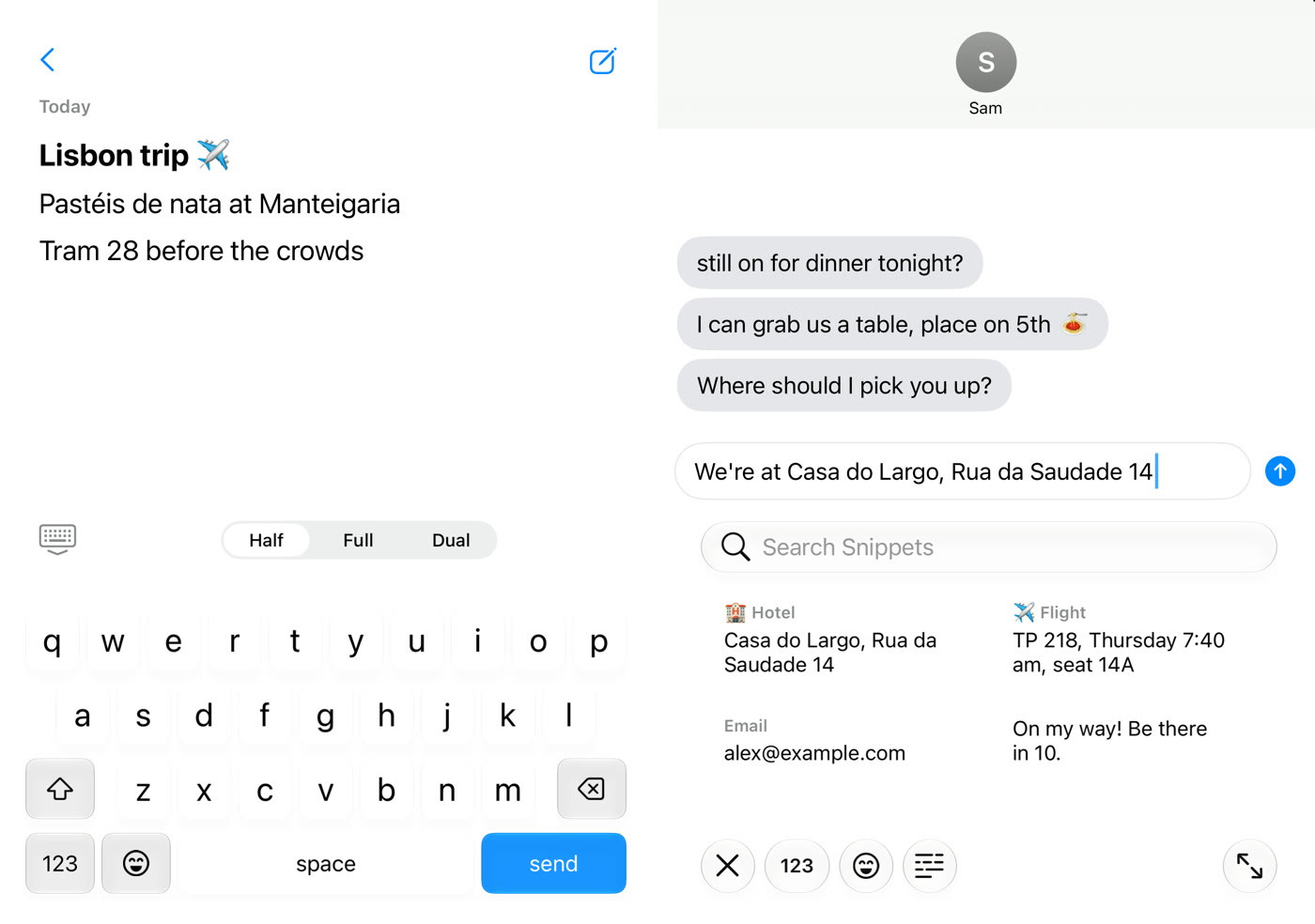
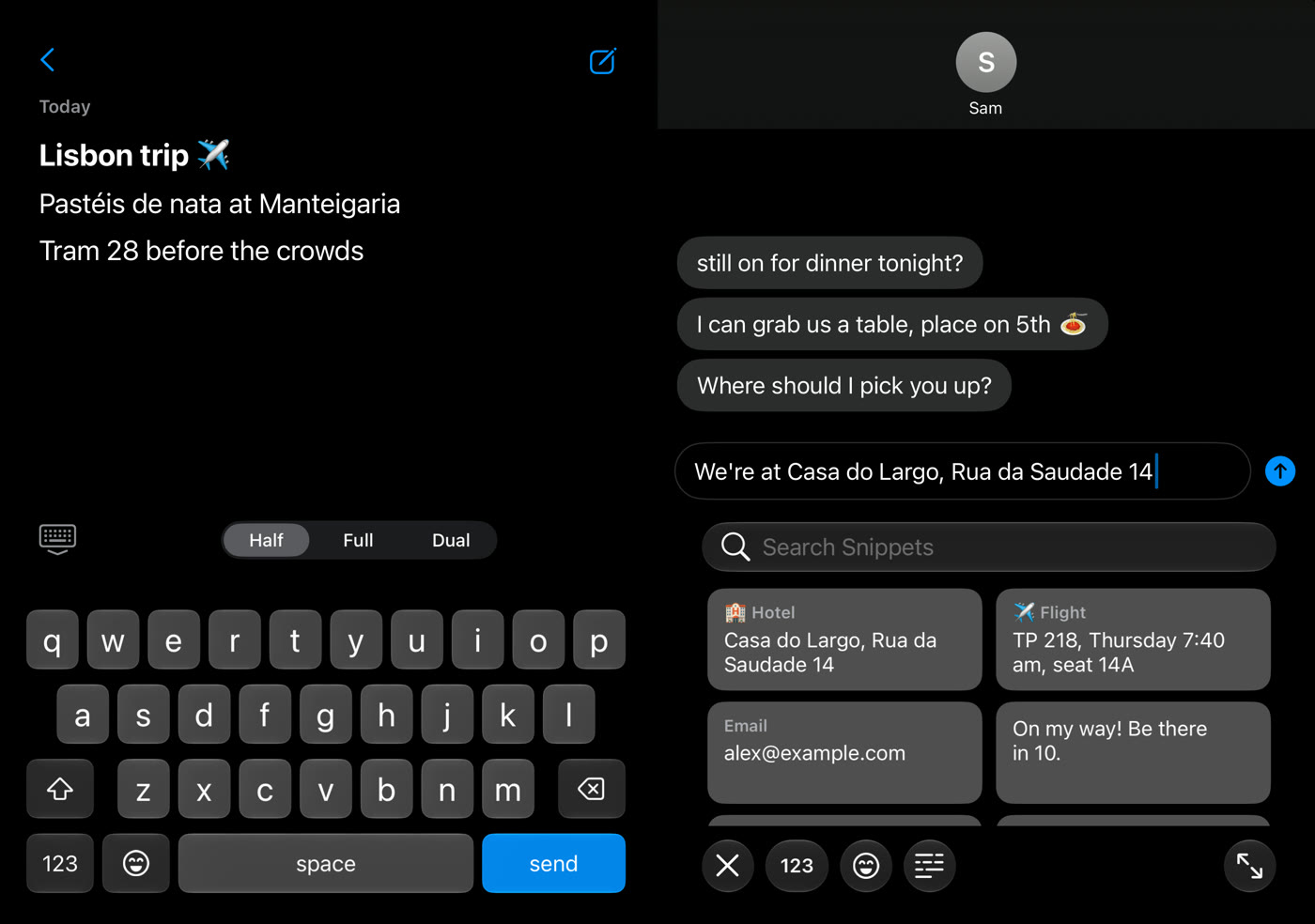
Save your address, email and go-to replies as snippets, and they’re one tap from the keys.
Swipe and autocorrect
Swipe a word or tap it out. Duoboard fixes slips as each word ends, and the strip above the keys always has another option.
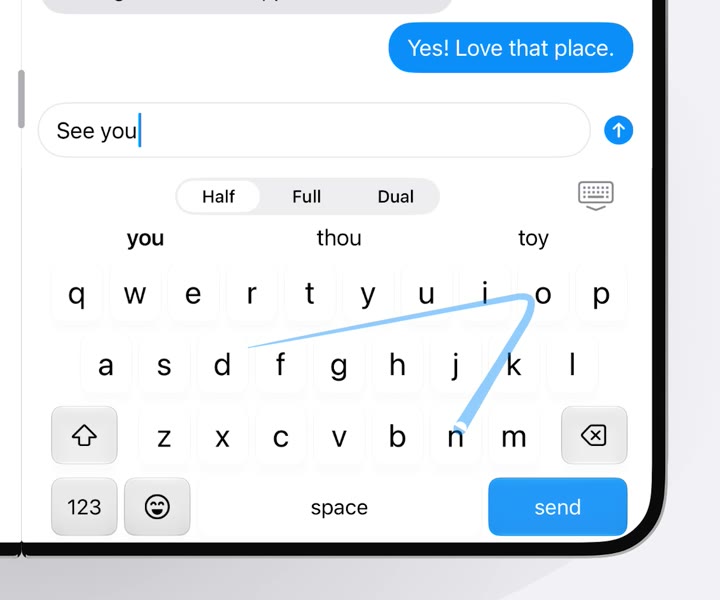
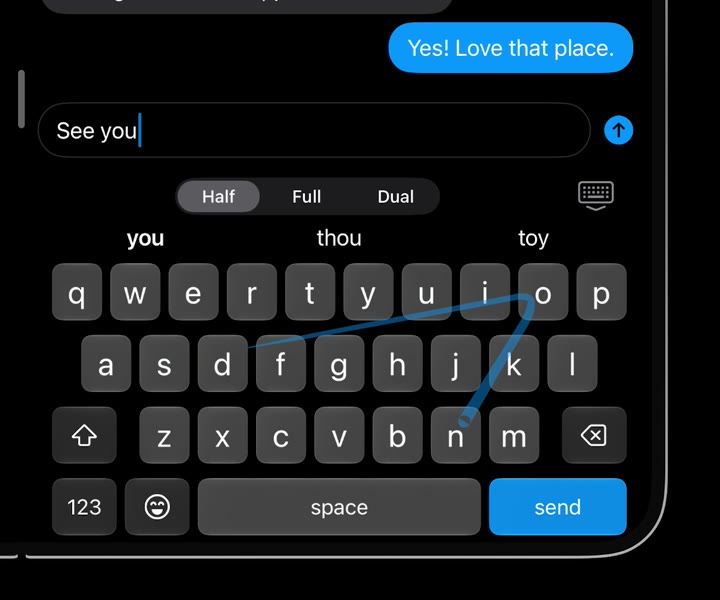
Glide through the letters on either half and lift. The likeliest word goes in, and two alternatives wait in the strip.
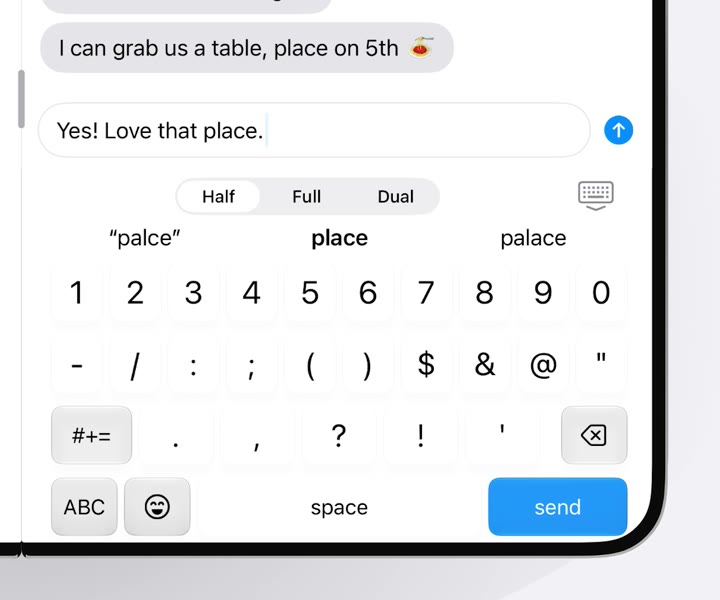
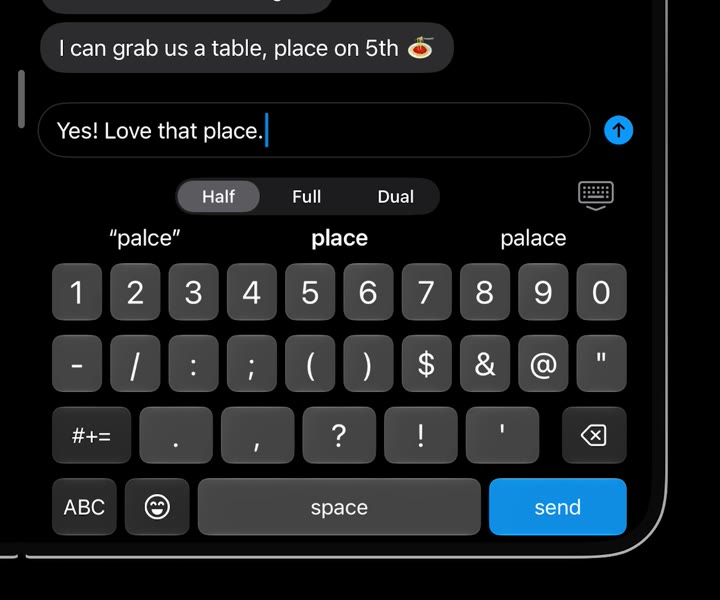
Typos are fixed when the word ends. What you typed stays in the strip, in quotes, and backspace puts it back.
hownitnfoes
how it goes
Missed the space bar? A letter just above it can count as a space, so a run-on like this comes out as the words you meant.
Alternatives for the word you’re on, one tap away.
Select a word and the strip offers replacements for it.
Words you pick from the strip are remembered on your iPhone.
Hold space, then slide to move the cursor.
Search by name, pick skin tones, and your favorites first.
Save your email, address or go-to replies, and insert them with one tap.
What you copy, kept for later and a tap away beside the keys.
Flick the space bar toward your thumb, or hold the emoji key.
See, add and forget the words Duoboard has learned.
Optional key haptics, and colors that match the system keyboard.
Privacy
The keyboard never uses the network. There’s no account, no analytics and nothing to sync.
App Store privacy label
Data Not Linked to You
Setup
Open the Settings app and go to:
In any app, touch and hold the globe key, then choose Duoboard.
Open the Duo like a book and choose Half, Dual or Full from the keyboard’s top row.
Questions
Yes. On a regular iPhone, and on the Duo’s outer screen, Duoboard is a single keyboard with the same swipe typing and autocorrect. The Half, Dual and Full modes are for the Duo’s open display.
It doesn’t need it. Full Access is optional and turns on key haptics, remembering words you pick, clipboard history and snippets. All of them stay on your iPhone.
No. The keyboard never uses the network, and everything it does happens on your iPhone. The app goes online only to check your Pro purchase.
English (US).